Setting up Qt
If your Linux distribution does NOT provide a recent enough version of Qt, you have the following options:
- Use containers
- Install Qt6 using the Qt online installer
- Install Qt6 using the unofficial aqtinstall installer
- Build Qt6 using kde-builder
- Switch to a more up-to-date distro
Finding the latest Qt version
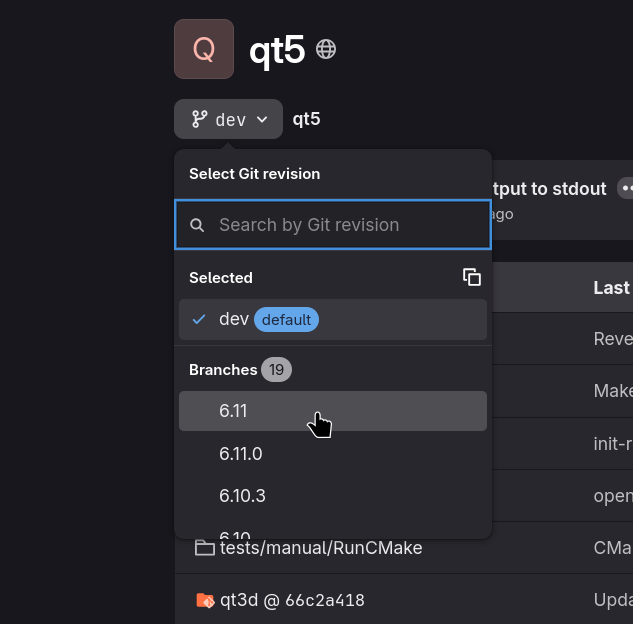
To find out the latest release of Qt, you can visit KDE's Qt repository mirror and check for the right branch:
Use Qt6 from the online installer
Instead of letting kde-builder build Qt for you, you may want to use Qt's official installer.
First, create an account on Qt's website. Then, download the installer from the Qt for Open Source Development page.
Run the downloaded file, log in with your Qt account, and follow the wizard. During the installation, choose the option Custom installation, and:
- Uncheck
Qt Design Studio - Uncheck
Qt Creator - Make sure the
Desktopitem for the latest version of Qt is selected
This will install only the essential Qt libraries in ~/Qt by default, occupying a little less than 2 GB of storage.
Once installed, open ~/.config/kde-builder.yaml, uncomment the line with qt-install-dir: ~/kde/qt, and change it to point to your Qt installation. The actual path should be similar to this, depending on your Qt version:
qt-install-dir: ~/Qt/6.9.0/gcc_64Once this is done, kde-builder will know to use the Qt provided by the online installer to build KDE software.
If you ever need to install more Qt components, you can do so using the Qt Maintenance Tool that was added by the installer.
Use Qt6 from aqtinstall
If you do not want to create a Qt account to use Qt's official installer and do not want to build Qt yourself,
you can try using the unofficial installer aqtinstall which downloads
Qt from the same sources as the official installer.
First, install aqtinstall:
pipx install aqtinstallIf you don't have pipx installed, you can install it from your distribution.
You can then install Qt using:
aqt install-qt linux desktop 6.9 linux_gcc_64 --outputdir ~/Qt --modules allreplacing 6.9 with the latest Qt version number. See Finding the latest Qt version.
This will install all Qt modules available in the latest version and will occupy a bit more than 8 GB of storage.
Once installed, open the file ~/.config/kde-builder.yaml, uncomment the line with qt-install-dir: ~/kde/qt, and change it to point to your Qt installation. The actual path should be similar to this, depending on your Qt version:
qt-install-dir: ~/Qt/6.9.0/gcc_64Once this is done, kde-builder will know to use the Qt provided by the online installer to build KDE software.
Build Qt6 using kde-builder
It is possible to build Qt with kde-builder, but it requires a minimum of 30 GB of storage and has a long compilation time, up to a few hours depending on your machine.
To do this, open the file ~/.config/kde-builder.yaml and uncomment the line containing:
qt-install-dir: ~/kde/qtNear the end of the file, add an override so you build Qt from the latest release instead of the development branch (the default):
override qt6-set:
  branch: "6.9"
See Finding the latest Qt version to get the correct version number.
Then run:
kde-builder qt6-setThis will take a long time.