تخط المحتوى

إضافة حوار

التعرف على حوارات كيريغامي.

جعل تطبيقنا مفيدًا

لدينا نافذة، ولدينا بطاقات، ولدينا إجراءات. ومع ذلك، لا يزال يتعين علينا إيجاد طريقة لإدخال اسم ووصف وتاريخ من اختيارنا.

إحدى الطرق لفعل ذلك هي إنشاء صفحة جديدة نضع فيها عناصر الإدخال المطلوبة. لكن، تخصيص صفحة كاملة لتوفير اسم ووصف وتاريخ يبدو مبالغًا فيه بعض الشيء.

بدلاً من ذلك، سنستخدم حوارًا.

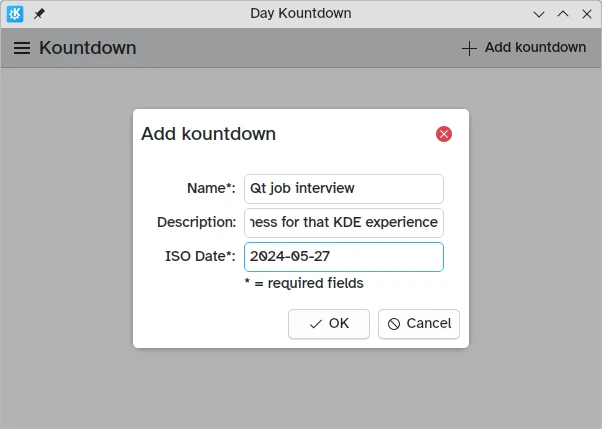
حوار يظهر في منتصف التطبيق

فتح الحوار

pageStack.initialPage: Kirigami.ScrollablePage {
    // ...
    actions: [
        Kirigami.Action {
            id: addAction
            icon.name: "list-add"
            text: i18nc("@action:button", "Add kountdown")
            onTriggered: addDialog.open()
        }
    ]
}

أولاً نعدّل الإجراء من الدليل السابق: مجرد Kirigami.Action يُشغّل دالة open() الخاصة بالحوار.

حوارات إضافة العد التنازلي

المكون الجديد الذي نضيفه هو Kirigami.Dialog. تظهر الحوارات في وسط النافذة ويمكن استخدامها لتوفير معلومات إضافية ذات صلة بالمحتوى الحالي. لا يمكن نقلها، لكنها تُكيّف حجمها مع النافذة.

Kirigami.ApplicationWindow {
    // ...
    Kirigami.Dialog {
        id: addDialog
        title: i18nc("@title:window", "Add kountdown")
        standardButtons: Kirigami.Dialog.Ok | Kirigami.Dialog.Cancel
        padding: Kirigami.Units.largeSpacing
        preferredWidth: Kirigami.Units.gridUnit * 20

        // تساعد تخطيطات النماذج في محاذاة وهيكلة تخطيط يحتوي على عدة مدخلات
        Kirigami.FormLayout {
            // تسمح لك حقول النص بإدخال نص في مربع نص رفيع
            Controls.TextField {
                id: nameField
                // يوفر تسمية ملحقة بحقل النص
                Kirigami.FormData.label: i18nc("@label:textbox", "Name*:")
                // ما يجب فعله بعد قبول الإدخال (أي الضغط على Enter). في هذه الحالة، ينقل التركيز
                // إلى الحقل التالي
                onAccepted: descriptionField.forceActiveFocus()
            }
            Controls.TextField {
                id: descriptionField
                Kirigami.FormData.label: i18nc("@label:textbox", "Description:")
                placeholderText: i18n("Optional")
                // مرة أخرى، ينقل التركيز إلى الحقل التالي
                onAccepted: dateField.forceActiveFocus()
            }
            Controls.TextField {
                id: dateField
                Kirigami.FormData.label: i18nc("@label:textbox", "ISO Date*:")
                // D تعني رقمًا مطلوبًا بين 1-9، 9 تعني رقمًا مطلوبًا بين 0-9
                inputMask: "D999-99-99"
                // هنا نؤكد العملية تمامًا مثل النقر على زر موافق
                onAccepted: addDialog.onAccepted()
            }
            Controls.Label {
                text: "* = required fields"
            }
        }
        // منطق الحوار يُوضع هنا
    }
    // ...
}

تحتوي الحوارات مبدئيًا على رأس وتذييل، وكلاهما موروث من Controls.Dialog.

يتضمن الرأس مبدئيًا عنوانًا وزر إغلاق يمكن تعطيله باستخدام showCloseButton. يتضمن التذييل مبدئيًا زر إغلاق، ويمكن تجاوزه باستخدام standardButtons.

نضبطه أولاً لعرض زر "موافق" وزر "إلغاء"، ونضيف بعض الحشو، ونضيف عرضًا مفضلاً معقولاً. العرض المفضل هو الحجم المبدئي المتوقع للحوار، والذي يمكن زيادته إذا لزم الأمر. يمكننا استخدام وحدات كيريجامي القياسية التي سنعود إليها لاحقًا.

ثم نصل إلى Kirigami.FormLayout. على عكس ColumnLayout، فإن تخطيط مكوناته الفرعية تلقائي ومتمركز، مع تسميات اختيارية. كما يوحي الاسم، يُستخدم لإنشاء نماذج إدخال.

صُممت تخطيطات النماذج هذه للعمل مع مجموعة متنوعة من أنواع الإدخال المختلفة، على الرغم من أننا نلتزم بمدخلات Controls.Textfield البسيطة التي تمنحنا مربعات نص بسيطة للكتابة فيها.

أنشأنا عناصر حقل نص تعمل كالتالي:

  1. مدخل لاسم العد التنازلي لدينا
  2. مدخل لوصف العد التنازلي لدينا
  3. مدخل للتاريخ الذي نعد تنازليًا نحوه، ويجب تقديمه بصيغة YYYY-MM-DD

داخل كل عنصر من عناصر Controls.Textfield هذه، نضبط خاصية Kirigami.FormData.label التي تسمح لنا بتعريف لصائق لها. سيعرض النموذج اللصائق الصحيحة إلى يسار كل حقل من حقول إدخال النص هذه.

أخيرًا، نضبط أيضًا الخاصية onAccepted لتشغيل طريقة forceActiveFocus() للحقل التالي؛ سيؤدي هذا إلى تبديل الحقل النشط بمجرد ضغط المستخدم على مفتاح ENTER، مما يحسن قابلية استخدام النموذج.

وضعنا أيضًا خاصية تسمى inputMask على حقل النص الخاص بتاريخنا. ضبط هذا على D999-99-99 يمنع المستخدمين من إدخال شيء قد يعطل وظيفة التطبيق (مثل النص)، ويقيدهم بإدخال الأرقام فقط التي يمكننا بعد ذلك محاولة تحليلها إلى كائن تاريخ.

بمجرد الانتهاء من واجهة المستخدم للحوار، نحتاج إلى تغيير كيفية تصرفه. لهذا نحتاج إلى ثلاثة أشياء:

  1. أظهر زر موافق فقط عند ملء الحقول المطلوبة
  2. أضف معلومات الإدخال إلى النموذج
  3. امسح نموذج الإدخال
Kirigami.Dialog {
    // ... بمجرد تهيئة Kirigami.Dialog، نريد إنشاء ربط مخصص لجعل زر موافق مرئيًا فقط إذا كانت حقول
    // النص المطلوبة ممتلئة. لهذا نستخدم Kirigami.Dialog.standardButton(button):
    Component.onCompleted: {
        const button = standardButton(Kirigami.Dialog.Ok);
        // () => هي دالة سهمية في جافا سكريبت
        button.enabled = Qt.binding( () => requiredFieldsFilled() );
    }
    onAccepted: {
        // تم إنشاء الربط، لكننا ما زلنا بحاجة إلى جعله غير قابل للنقر ما لم تكن الحقول ممتلئة
        if (!addDialog.requiredFieldsFilled()) return;
        appendDataToModel();
        clearFieldsAndClose();
    }
}

أول شيء يجب فعله هو إنشاء ربط بين خاصية enabled لزر موافق والتحقق مما إذا كانت الحقول ممتلئة، والذي يجب في هذه الحالة القيام به باستخدام Qt.binding() في جافا سكريبت. في الواقع، السطر:

button.enabled = Qt.binding( () => requiredFieldsFilled() );

مشابه لروابط QML التي رأيناها حتى الآن، كما في الكود الزائف التالي:

enabled: requiredFieldsFilled()

معالج الإشارة الذي يشغل زر موافق هو onAccepted. يبقى فارغًا ولا يفعل شيئًا إذا كانت الحقول المطلوبة ممتلئة؛ وإلا، سيضيف الإدخال إلى النموذج ويمسح الحوار للمرة التالية التي يُفتح فيها.

Kirigami.Dialog {
    // ... نتحقق من أن nameField ليس فارغًا وأن dateField (الذي يحتوي على inputMask) ممتلئ بالكامل
    function requiredFieldsFilled() {
        return (nameField.text !== "" && dateField.acceptableInput);
    }
    function appendDataToModel() {
        kountdownModel.append({
            name: nameField.text,
            description: descriptionField.text,
            date: new Date(dateField.text)
        });
    }
    function clearFieldsAndClose() {
        nameField.text = ""
        descriptionField.text = ""
        dateField.text = ""
        addDialog.close();
    }
}

بالنسبة لحقل الاسم المطلوب، كل ما نحتاج إليه هو التحقق مما إذا كان نص الحقل سلسلة فارغة. بالنسبة لحقل التاريخ، لأنه يحتوي على قناع إدخال، نحتاج إلى استخدام acceptableInput بدلاً من ذلك، والذي يصبح صحيحًا فقط بمجرد ملء الحقل بالكامل واحتوائه على أحرف مقبولة فقط.

ثم، طريقة append() لنموذج القائمة kountdownModel تضيف كائن جافا سكريبت يتضمن الخصائص التي قدمناها.

أخيرًا، نتأكد من مسح حقول النص عن طريق ضبط خصائص text الخاصة بها إلى سلسلة فارغة، ثم close() إغلاقه.

بمجرد حفظ ملفاتنا وبناء برنامجنا، سنكون قادرين على إضافة عداداتنا التنازلية المخصصة! يمكننا إجراء لمسة أخيرة لتحسين الواجهة، وهي إزالة العد التنازلي الوهمي الذي كان لدينا في الدروس السابقة:

26
27
28
    ListModel {
        id: kountdownModel
    }

ثانيًا، الآن بعد أن أصبح لدينا تاريخ فعلي للعمل به، يمكننا حساب الوقت حتى التاريخ المذكور:

47
48
49
50
                    Kirigami.Heading {
                        level: 1
                        text: i18n("%1 days", Math.round((date-Date.now())/86400000))
                    }

وثالثًا، زيادة حجم النافذة بحيث يكون لدينا مساحة أكبر لبطاقاتنا الجديدة:

 9
10
    width: 600
    height: 400

أجمل بكثير.

تطبيقنا حتى الآن

Main.qml:
  1
  2
  3
  4
  5
  6
  7
  8
  9
 10
 11
 12
 13
 14
 15
 16
 17
 18
 19
 20
 21
 22
 23
 24
 25
 26
 27
 28
 29
 30
 31
 32
 33
 34
 35
 36
 37
 38
 39
 40
 41
 42
 43
 44
 45
 46
 47
 48
 49
 50
 51
 52
 53
 54
 55
 56
 57
 58
 59
 60
 61
 62
 63
 64
 65
 66
 67
 68
 69
 70
 71
 72
 73
 74
 75
 76
 77
 78
 79
 80
 81
 82
 83
 84
 85
 86
 87
 88
 89
 90
 91
 92
 93
 94
 95
 96
 97
 98
 99
100
101
102
103
104
105
106
107
108
109
110
111
112
113
114
115
116
117
118
119
120
121
122
123
124
125
126
127
128
129
130
131
132
133
134
135
136
137
138
139
140
141
142
143
144
145
146
147
148
149
150
151
152
153
154
155
156
157
158
159
160
161
162
163
164
165
166
167
168
169
170
171
172
173
174
175
176
177
import QtQuick
import QtQuick.Layouts
import QtQuick.Controls as Controls
import org.kde.kirigami as Kirigami

Kirigami.ApplicationWindow {
    id: root

    width: 600
    height: 400

    title: i18nc("@title:window", "Day Kountdown")

    globalDrawer: Kirigami.GlobalDrawer {
        isMenu: true
        actions: [
            Kirigami.Action {
                text: i18n("Quit")
                icon.name: "application-exit-symbolic"
                shortcut: StandardKey.Quit
                onTriggered: Qt.quit()
            }
        ]
    }

    ListModel {
        id: kountdownModel
    }

    Component {
        id: kountdownDelegate
        Kirigami.AbstractCard {
            contentItem: Item {
                implicitWidth: delegateLayout.implicitWidth
                implicitHeight: delegateLayout.implicitHeight
                GridLayout {
                    id: delegateLayout
                    anchors {
                        left: parent.left
                        top: parent.top
                        right: parent.right
                    }
                    rowSpacing: Kirigami.Units.largeSpacing
                    columnSpacing: Kirigami.Units.largeSpacing
                    columns: root.wideScreen ? 4 : 2

                    Kirigami.Heading {
                        level: 1
                        text: i18n("%1 days", Math.round((date-Date.now())/86400000))
                    }

                    ColumnLayout {
                        Kirigami.Heading {
                            Layout.fillWidth: true
                            level: 2
                            text: name
                        }
                        Kirigami.Separator {
                            Layout.fillWidth: true
                            visible: description.length > 0
                        }
                        Controls.Label {
                            Layout.fillWidth: true
                            wrapMode: Text.WordWrap
                            text: description
                            visible: description.length > 0
                        }
                    }
                    Controls.Button {
                        Layout.alignment: Qt.AlignRight
                        Layout.columnSpan: 2
                        text: i18n("Edit")
                    }
                }
            }
        }
    }

    Kirigami.Dialog {
        id: addDialog
        title: i18nc("@title:window", "Add kountdown")
        standardButtons: Kirigami.Dialog.Ok | Kirigami.Dialog.Cancel
        padding: Kirigami.Units.largeSpacing
        preferredWidth: Kirigami.Units.gridUnit * 20

        // Form layouts help align and structure a layout with several inputs
        Kirigami.FormLayout {
            // Textfields let you input text in a thin textbox
            Controls.TextField {
                id: nameField
                // Provides a label attached to the textfield
                Kirigami.FormData.label: i18nc("@label:textbox", "Name*:")
                // What to do after input is accepted (i.e. pressed Enter)
                // In this case, it moves the focus to the next field
                onAccepted: descriptionField.forceActiveFocus()
            }
            Controls.TextField {
                id: descriptionField
                Kirigami.FormData.label: i18nc("@label:textbox", "Description:")
                placeholderText: i18n("Optional")
                // Again, it moves the focus to the next field
                onAccepted: dateField.forceActiveFocus()
            }
            Controls.TextField {
                id: dateField
                Kirigami.FormData.label: i18nc("@label:textbox", "ISO Date*:")
                // D means a required number between 1-9,
                // 9 means a required number between 0-9
                inputMask: "D999-99-99"
                // Here we confirm the operation just like
                // clicking the OK button
                onAccepted: addDialog.onAccepted()
            }
            Controls.Label {
                text: "* = required fields"
            }
        }
        // Once the Kirigami.Dialog is initialized,
        // we want to create a custom binding to only
        // make the Ok button visible if the required
        // text fields are filled.
        // For this we use Kirigami.Dialog.standardButton(button):
        Component.onCompleted: {
            const button = standardButton(Kirigami.Dialog.Ok);
            // () => is a JavaScript arrow function
            button.enabled = Qt.binding( () => requiredFieldsFilled() );
        }
        onAccepted: {
            // The binding is created, but we still need to make it
            // unclickable unless the fields are filled
            if (!addDialog.requiredFieldsFilled()) return;
            appendDataToModel();
            clearFieldsAndClose();
        }
        // We check that the nameField is not empty and that the
        // dateField (which has an inputMask) is completely filled
        function requiredFieldsFilled() {
            return (nameField.text !== "" && dateField.acceptableInput);
        }
        function appendDataToModel() {
            kountdownModel.append({
                name: nameField.text,
                description: descriptionField.text,
                date: new Date(dateField.text)
            });
        }
        function clearFieldsAndClose() {
            nameField.text = ""
            descriptionField.text = ""
            dateField.text = ""
            addDialog.close();
        }
    }

    pageStack.initialPage: Kirigami.ScrollablePage {
        title: i18nc("@title", "Kountdown")

        // Kirigami.Action encapsulates a UI action. Inherits from Controls.Action
        actions: [
            Kirigami.Action {
                id: addAction
                // Name of icon associated with the action
                icon.name: "list-add-symbolic"
                // Action text, i18n function returns translated string
                text: i18nc("@action:button", "Add kountdown")
                // What to do when triggering the action
                onTriggered: addDialog.open()
            }
        ]

        Kirigami.CardsListView {
            id: cardsView
            model: kountdownModel
            delegate: kountdownDelegate
        }
    }
}

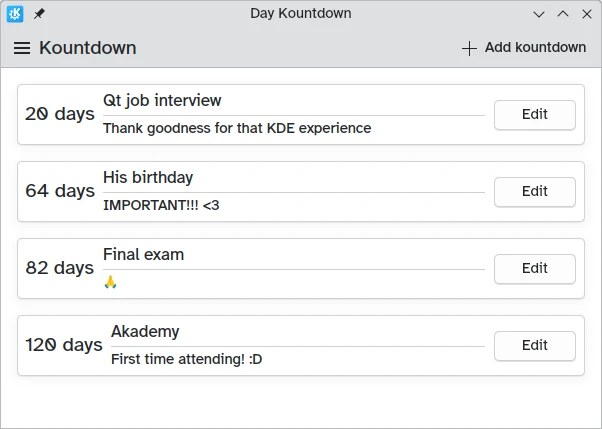
لقطة شاشة للتطبيق مع أربع بطاقات مثال